Posts

Windows Restart or Shut Down a Remote Computer

Please note both these procedures require an Administrator group level access, or equivalent, on the remote computer. Using a Windows Interface To restart or shutdown a remote computer and document the reason in the log files using the Windows interface you will need to do the following: Open the Command Prompt window by pressing "Windows" + "R" and type "CMD" and hit "Enter"/"OK" Type "shutdown /i" to display the Remote Shutdown dialog box (the Shutdown.exe file found in the Windows directory) Click the "Add" button to enter the associated computer names you wish to shutdown/restart or click "Browse" to open the "Find Computers" dialog box Under "What do you want these computers to do", click "Restart" or "Shut down" and options for warning any logged in users. Select an appropriate reason for the restart or shutdown from the list and enter in any details t...

Filling the G-Apps: Drive Moving Files - The Starring Method

Image
In a any business you’ll end up with a job reference or numbering convention and a folder structure as the business grows. This can get more and more difficult to search through when moving documents around in Google Drive as there is currently no function to search after you select "Move to". A simple solution to this process is to use the star function in Drive or searching via the naming convention. Both methods work effectively but depending the situation one will be more efficient than the other. The Starring Method First select the item or items you want to move into the folder Next search for the folder you want to move the items into, select the folder and star it as well, Next select “Starred” in the sidebar and highlight the items you want to move and drag them into the folder You can check their location in the details sidebar Unstar all the items once you’ve finished The Search Method Please note this only works if you’re using a naming con...

Filling the G-Apps: GSuite Onboards Google Keep

Image
If you haven't noticed Google Keep is now integrated into the GSuite products: Google’s note-taking app Keep joins G Suite, now integrates with Google Docs You can get to Keep under the Tools section of each of GSuite's core products: It will show up as a side panel like this: If you have the GSuite Training Extension enabled you can find Google Keep training available here: GSuite Training - Google Keep

Filling the G-Apps: Desktop Chrome App Launcher Not working

Image
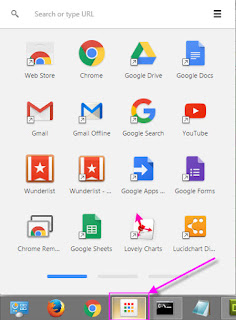
This was one of my many draft posts waiting to see daylight (this one's about two years old) and unfortunately it looks like the Desktop Extension might be depreciated at some point. The version I'm talking about is the original App Launcher from Google that resides on your desktop Taskbar not in the Chrome browser: Back to the issue: If at some point you get an error that stops your Chrome App Launcher from launching and instead launches a standard window you should just need to correct the link so that the App Launcher works again. This can be done by completing the following steps: Locate the shortcut that's not working, whether it's on your desktop, Quick Launch Toolbar or Start Menu. Right click the shortcut and go to "Properties" In the "Target" box go to the very end of the path and type " --show-app-list" i.e. it should look something like this:  "C:\Users\username\AppData\Local\Google\Chrome\Application\chrome.e...

Filling the G-Apps: Chrme Apps v Extensions

Image
What Are Chrome Apps/Extensions? Chrome Extensions are small pieces of software that integrate with Chrome browser giving it more functionality, while Chrome Apps are complete applications that use the Chrome browser as a GUI and connect to the external website for the coded processes and functions. For specific details please see: Extensions and Apps in the Chrome Web Store If you have a few extensions you used regularly we recommend that you download and install the Chrome App Launcher for your desktop as it allows for easy access and takes up less real estate: Chrome Apps Launcher Chrome Apps Below is a list of Chrome Apps that I've found useful on our network: LocalLinks - Used to open a local network folder view through neXus (will be depreciated) goo.gl URL Shortener - Create short links for long web addresses ezAutoCorrect for GMail - Auto correct for spelling, capitalization etc. Google Drive - Chrome Access to your clipboard Chrome Exten...

Filling the G-Apps: Adding/Embedding LucidChart in Google Sites

Image
What is LucidChart LucidChart is a flow-chart web application that can be integrated with Google Apps. It's simple to use once you understand how sharing works between LucidChart users (similar to Drive) and it saves time in generating flow-charts for internal workflow processes, customers, marketing and documentation purposes. Adding/Embedding LucidChart in Google Sites To display a LucidChart document inline on the Intranet you need to complete the following steps: LucidChart Once the document has been reviewed and is ready to share publicly on the Google Site select the "Share" button (top right corner) Select the "Embed" tab and select the "Publish Link" checkbox Look for the code that starts "src=" and select and copy everything the parenthesis: Google Sites  Edit the Site page Select "Insert" from the Site Menu (located at the top left corner under the page name) Under "Gadgets" select ".....

Filling the G-Apps: Chrome Management

I've just realised that I've been way too busy and haven't posted anything in a long time. I have about 10 draft posts that have been sitting there waiting to be finished, one since I started this blog, so here's a quick one: Chrome Management has become a lot more functional recently. Originally this functionality was only available to Chrome devices like the Chromebook but it seems they've opened it up to any device with the Chrome browser installed. For better control over which Apps and Extensions can be installed in your Google Apps network you can "Force Install", restrict, recommend and block which Apps and Extensions you want you users to have access to based on the OU they're under. You can manage Chrome extensions through your Google Admin Console OU settings under: Device Management > Chrome > User Settings > Apps and Extensions You might also find the "User Experience" and "Content" sections useful.