Posts

GSuite ISSUE - map New Sites with a secondary domain

Image
The ability to map a public domain to a secondary site is not currently functioning or available in GSuite Sites. The functionality looks like it's there but when you try to add a new mapping in the Admin Console it comes up with an error which makes sense in that it's crossing domains: You can select the added secondary domain which processes without an issue: The issue is no sites can exist under this domain. You can assign users to the domain by changing their login credentials to the secondary domain (using the rename option) however all GSuite Sites (New) are created under the primary domain and there is currently no option available to facilitate this. Integrate with Google Sites
Chrome Browser Auto Opening Documents

Image
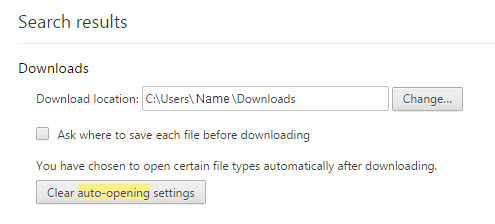
A couple of times I've had users ask how to stop files/documents automatically opening once they download them using the Chrome browser. It can be rather frustrating for the end user, however it's quite easy to rectify. You can follow these steps below: Select the "Chrome Settings"/burger menu button in Chrome > "Settings" Scroll to the very bottom of the screen or press "Ctrl" + "End" and select "Advanced Settings" Go to the "Downloads" section or click on the link below: chrome://settings/search#auto- opening Finally in the "Downloads" section click on the "Clear auto-opening settings" button:

Windows Restart or Shut Down a Remote Computer

Please note both these procedures require an Administrator group level access, or equivalent, on the remote computer. Using a Windows Interface To restart or shutdown a remote computer and document the reason in the log files using the Windows interface you will need to do the following: Open the Command Prompt window by pressing "Windows" + "R" and type "CMD" and hit "Enter"/"OK" Type "shutdown /i" to display the Remote Shutdown dialog box (the Shutdown.exe file found in the Windows directory) Click the "Add" button to enter the associated computer names you wish to shutdown/restart or click "Browse" to open the "Find Computers" dialog box Under "What do you want these computers to do", click "Restart" or "Shut down" and options for warning any logged in users. Select an appropriate reason for the restart or shutdown from the list and enter in any details t...

Filling the G-Apps: Drive Moving Files - The Starring Method

Image
In a any business you’ll end up with a job reference or numbering convention and a folder structure as the business grows. This can get more and more difficult to search through when moving documents around in Google Drive as there is currently no function to search after you select "Move to". A simple solution to this process is to use the star function in Drive or searching via the naming convention. Both methods work effectively but depending the situation one will be more efficient than the other. The Starring Method First select the item or items you want to move into the folder Next search for the folder you want to move the items into, select the folder and star it as well, Next select “Starred” in the sidebar and highlight the items you want to move and drag them into the folder You can check their location in the details sidebar Unstar all the items once you’ve finished The Search Method Please note this only works if you’re using a naming con...

Filling the G-Apps: GSuite Onboards Google Keep

Image
If you haven't noticed Google Keep is now integrated into the GSuite products: Google’s note-taking app Keep joins G Suite, now integrates with Google Docs You can get to Keep under the Tools section of each of GSuite's core products: It will show up as a side panel like this: If you have the GSuite Training Extension enabled you can find Google Keep training available here: GSuite Training - Google Keep

Filling the G-Apps: Desktop Chrome App Launcher Not working

Image
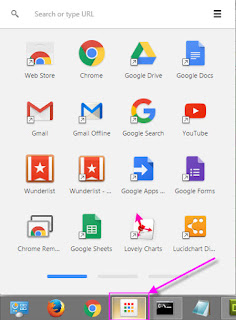
This was one of my many draft posts waiting to see daylight (this one's about two years old) and unfortunately it looks like the Desktop Extension might be depreciated at some point. The version I'm talking about is the original App Launcher from Google that resides on your desktop Taskbar not in the Chrome browser: Back to the issue: If at some point you get an error that stops your Chrome App Launcher from launching and instead launches a standard window you should just need to correct the link so that the App Launcher works again. This can be done by completing the following steps: Locate the shortcut that's not working, whether it's on your desktop, Quick Launch Toolbar or Start Menu. Right click the shortcut and go to "Properties" In the "Target" box go to the very end of the path and type " --show-app-list" i.e. it should look something like this:  "C:\Users\username\AppData\Local\Google\Chrome\Application\chrome.e...

Filling the G-Apps: Chrme Apps v Extensions

Image
What Are Chrome Apps/Extensions? Chrome Extensions are small pieces of software that integrate with Chrome browser giving it more functionality, while Chrome Apps are complete applications that use the Chrome browser as a GUI and connect to the external website for the coded processes and functions. For specific details please see: Extensions and Apps in the Chrome Web Store If you have a few extensions you used regularly we recommend that you download and install the Chrome App Launcher for your desktop as it allows for easy access and takes up less real estate: Chrome Apps Launcher Chrome Apps Below is a list of Chrome Apps that I've found useful on our network: LocalLinks - Used to open a local network folder view through neXus (will be depreciated) goo.gl URL Shortener - Create short links for long web addresses ezAutoCorrect for GMail - Auto correct for spelling, capitalization etc. Google Drive - Chrome Access to your clipboard Chrome Exten...